.png)
MACD Dashboard – Multi-Timeframe Confluence Scanner
Category: Trending Market
Last updated: 2025-10-08
Terminal: MT4
Preferred pairs: All
Timeframe: Any
TSFXT MACD Dashboard is a MT4 Indicator that shows the MACD signals of multiple timeframes together in one compact panel.
Instead of switching charts repeatedly, you can instantly see whether the MACD is bullish, bearish, or neutral on all key timeframes — from M1 to Monthly.
It’s designed for traders who want to identify trend confluence, spot momentum shifts, and confirm entries with precision.
.png)
⚙️ How It Works
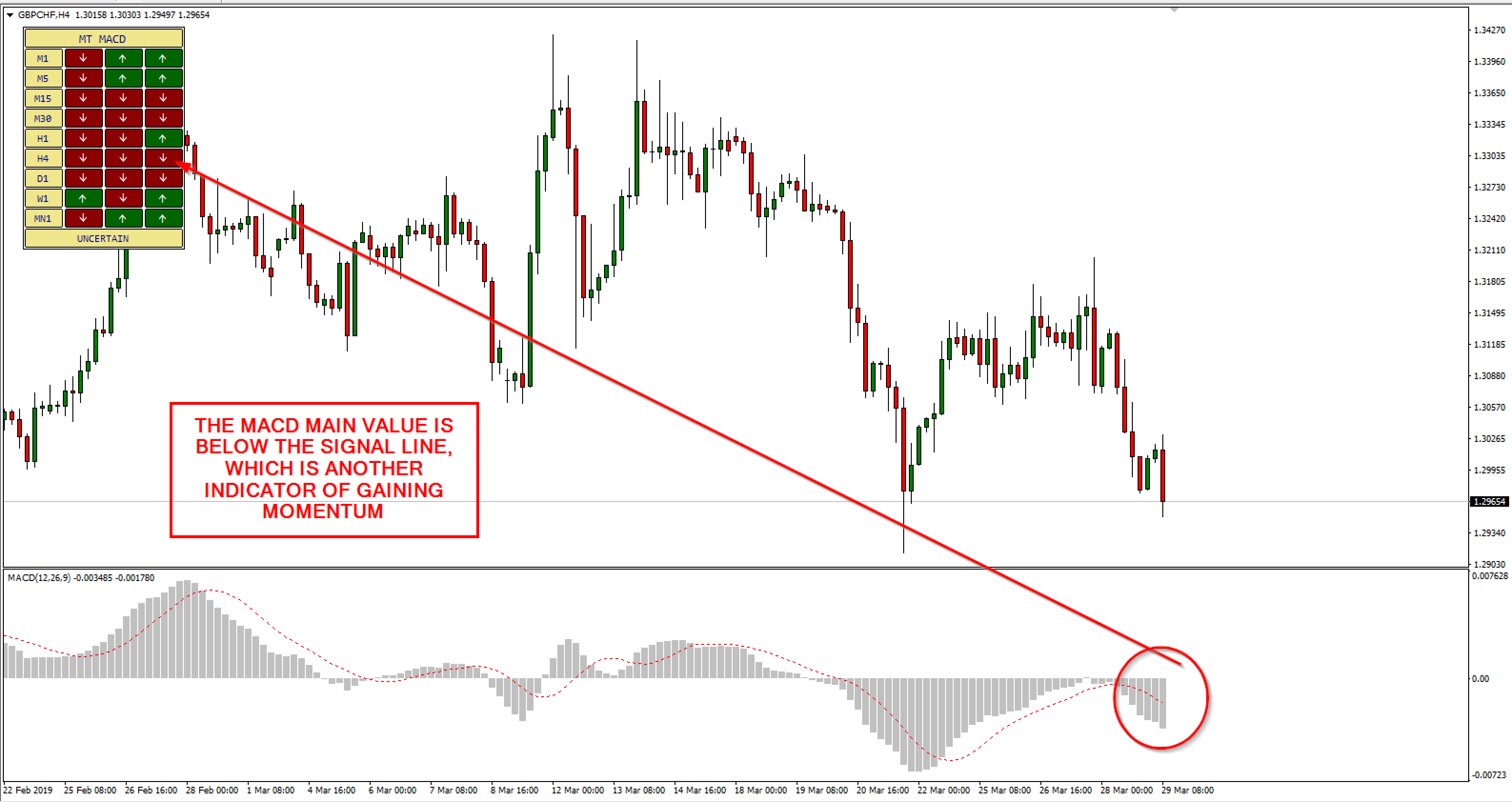
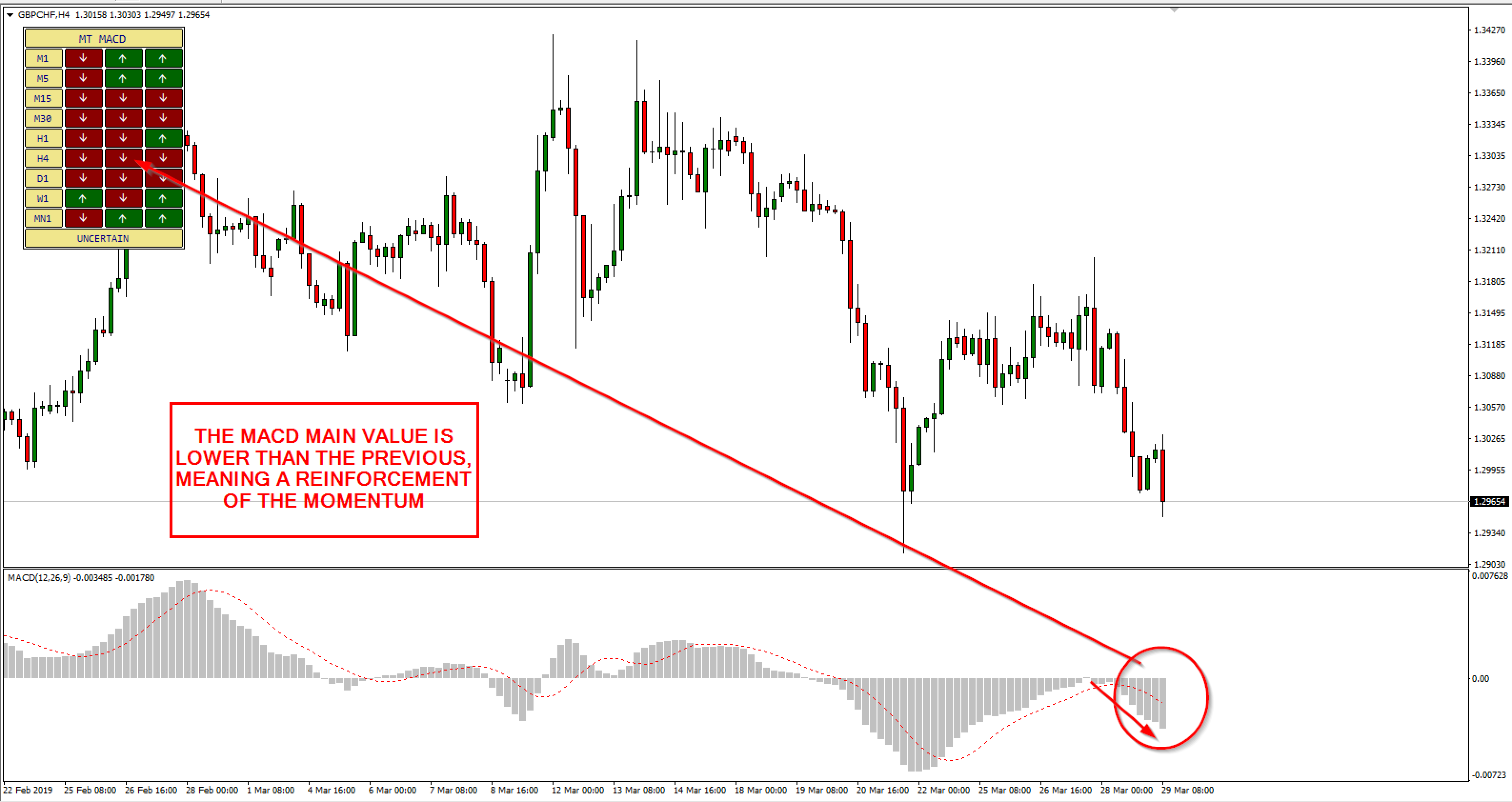
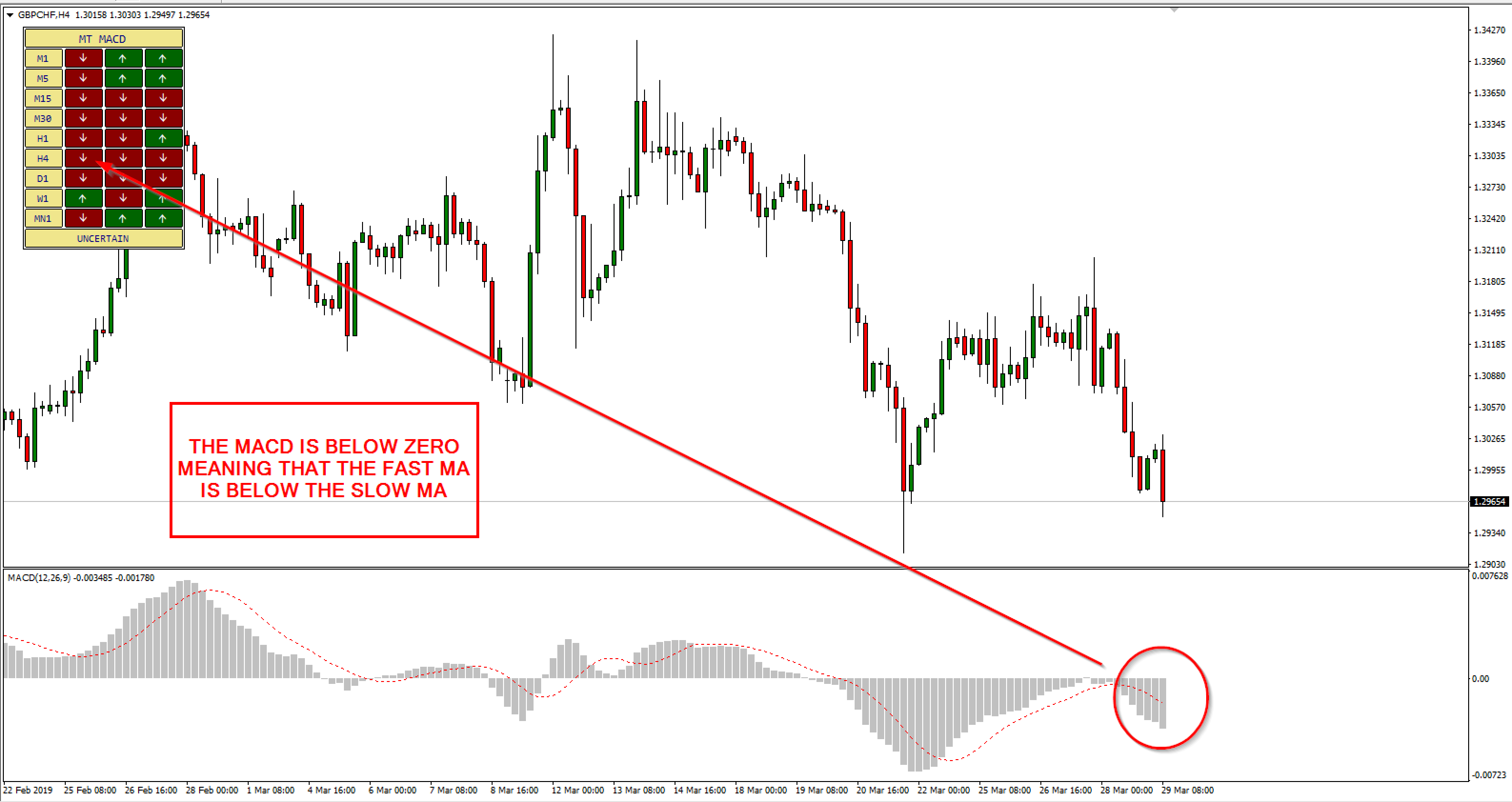
The dashboard calculates MACD using your selected parameters and displays the results in color form for each timeframe.
Green means bullish momentum, red shows bearish pressure, and gray indicates a neutral or mixed condition.
When multiple timeframes show the same color, it signals a strong directional bias — ideal for confident trading decisions.
🧩 Input Parameters Explained
Let’s understand what each parameter does so you can customize the indicator exactly to your style:
MACD Settings
-
MACDFastEMA (12) – The number of periods used for the fast EMA. Lower values make MACD more sensitive to price changes.
-
MACDSlowEMA (26) – The number of periods for the slow EMA. Increasing this smooths out noise and focuses on long-term trends.
-
MACDSMA (9) – The signal line period. It’s a moving average of the MACD line that helps detect crossovers and momentum turns.
-
MACDAppliedPrice (PRICE_CLOSE) – Defines which price (close, open, median, etc.) to use in calculations. Most traders stick to close prices.
Together, these four parameters form your custom MACD formula — just like the default one on MT4, but you can fine-tune it for different volatility conditions.
Candle Selection
-
CandleToCheck (CLOSED_CANDLE) – Determines whether the MACD signal is taken from the current forming candle or the last closed one.
Using the closed candle helps avoid repainting, while using the current candle gives earlier but more dynamic signals.
Enabled Timeframes
You can decide which timeframes appear on your dashboard:
-
TFM1 / TFM5 / TFM15 / TFM30 – Lower intraday levels for scalping.
-
TFH1 / TFH4 – Medium-term timeframes for intraday confirmation.
-
TFD1 / TFW1 / TFMN1 – Higher-timeframe filters for swing and position trading.
Simply turn any of them true or false to include or exclude them. This flexibility lets you create your own confluence layout — for example, only H1–H4–D1 for swing trading.
Notification Options
Stay updated without watching charts all day:
-
EnableNotify – Turns all alert functions on or off globally.
-
SendAlert – Displays pop-up alerts inside MT4 when MACD crosses the signal line.
-
SendApp – Sends push notifications directly to your MetaTrader mobile app.
-
SendEmail – Sends alerts to your registered email address so you can monitor the market remotely.
These options ensure you never miss a momentum shift, even when you’re away from your screen.
Graphical Layout
To position the dashboard neatly:
-
Xoff (20) – Adjusts the horizontal offset from the left side of the chart.
-
Yoff (20) – Adjusts the vertical offset from the top of the chart.
You can move the panel anywhere on the chart to fit your setup perfectly.
🔔 Alerts & Usage
When a MACD crossover occurs or when all selected timeframes align bullish or bearish, the dashboard highlights the signal and optionally sends notifications.
It’s excellent for spotting multi-timeframe momentum alignment — one of the most reliable conditions before a breakout or trend continuation.
🏷️ Summary
TSFXT MACD Dashboard saves you time and improves accuracy by giving you a complete MACD overview in one glance.
It’s simple, powerful, and customizable — built for traders who value clarity and confluence.